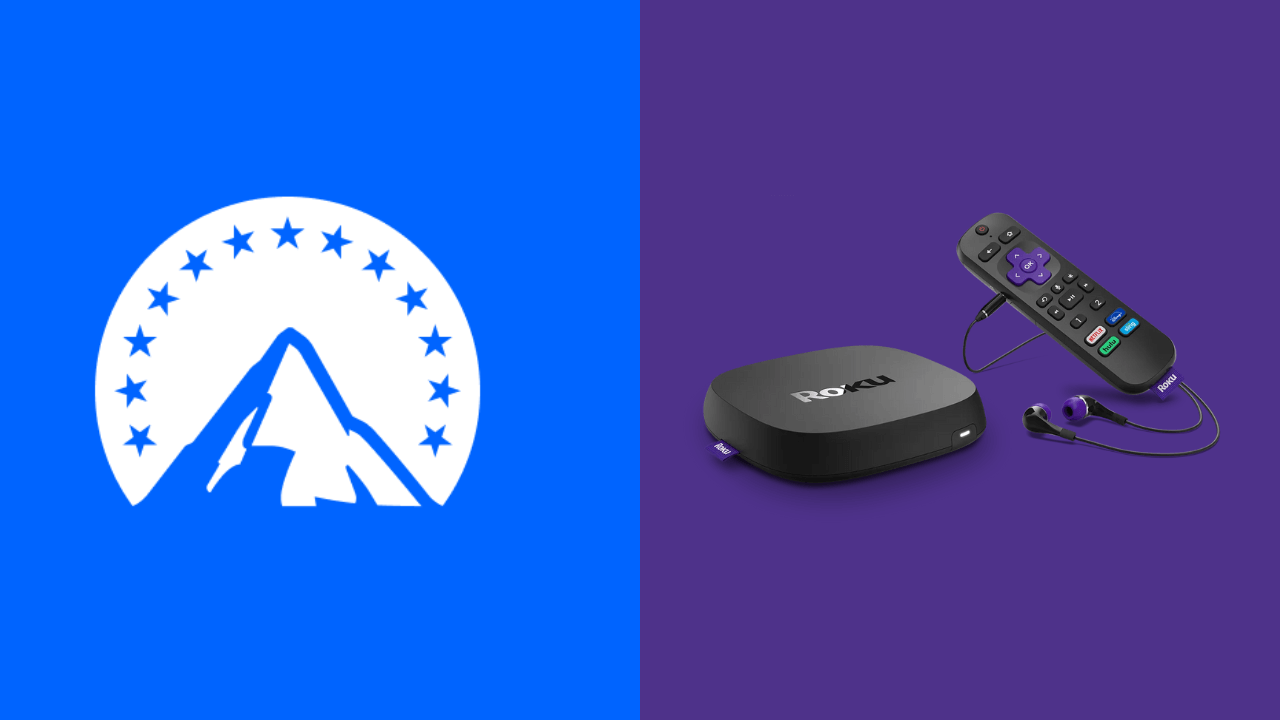
Absolutely! Roku is indeed a must-have media player for any smart TV enthusiast. You can enjoy its user-friendly interface and seamless streaming capabilities. Roku brings your favorite entertainment content right to your fingertips. It is an affordable option that saves a lot of money from your wallet. You need to set it up properly to unlock the full prospect of Roku. The Roku Channel Store has an extensive library of streaming apps for free installation. After a successful Roku setup, you can explore the world of endless entertainment, such as streaming your favorite movies, TV shows, music, and more from popular channels in 4K HD streaming quality.
The setup process will vary slightly depending on the specific Roku model you have. Here’s a summarized version of the setup process for the Roku Express, Streaming Stick 4K, Premiere, 3, 2, and Ultra LT:
Connect your Roku Device to HDMI
Usually, Roku devices consist of HDMI and USB ports. If your Roku Streaming Stick has a USB port, connect it to your TV directly. For HDMI, follow the below procedure.
[1] Initially, plug one end of the HDMI cable into your Roku streaming device.
[2] Plug the other end of the HDMI cable into your TV.

In case you have Roku Streaming Stick with an HDMI pin, then you can directly connect the Roku Stick to the TV HDMI port.
If your Roku device has a composite three-pinned cable (RCA cable), connect the appropriate color-coded connectors to the corresponding ports on your TV.
Connect the Device to the Power Source
[1] Plug the Power Adapter into your Roku device.
[2] Connect the Power Adapter to a Power Source. Meanwhile, some Roku streaming devices can be powered via
a USB port on your TV, but we generally recommend you use the power adapter.

Set Up the Roku Remote
[1] Open the battery compartment on the back of the Roku remote.
[2] Insert the provided batteries into the compartment.

[3] Close the battery compartment and press the Pairing button on the remote for a few seconds until the status light flashes.
For a rechargeable Roku remote, you can press the Pairing button at the back of the remote to pair it to the TV.
[4] After that, your remote will starts to pair with your Roku.
[5] Once the remote is paired with your Roku, you can see the confirmation message on your screen.
Furthermore, if you own a Roku Simple Remote, just insert the battery into the compartment to access your Roku without pairing.
Turn On the TV and Select the Correct Input
[1] Turn on your TV.
[2] Use the TV remote to select the input source that corresponds to the HDMI or composite port where you connected your Roku device.

Connect Roku Device to WiFi
[1] When the Roku device powers on, it will display the Roku logo. Then, it flashes a series of setup screens on your TV.
[2] Select your preferred language.

[3] Now, you have to connect Roku to a standard internet connection.
[4] If you’re using a wired ethernet cable, click the Wired option. It will connect the Roku device to your WiFi router.
[5] For a wireless connection, click Wireless to proceed further.

[6] Connect your Roku streaming stick to a stable WiFi network by choosing the network from the list.

[7] If prompted, enter the Password and click Connect to connect with the network.

[8] Allow the Roku device to download and install any available software updates.

[9] Choose the display type that matches your TV’s capabilities.

[10] If you’re satisfied with your display type, click Yes, screen looks good to proceed further. If not, change accordingly.
Activate Roku Device
Finally, you must activate your Roku account from a web browser to complete the setup.
[1] On a computer or smartphone, go to roku.com/link and enter the provided Activation Code. Sign in to your existing Roku account.

[2] If you don’t have one, select No, I need to create one and create a new account.
[3] Further, if you wish to secure your Roku with a PIN, choose the options accordingly.

[4] Select the Payment method and enter the Payment Details. Now, you’ll be able to rent or purchase entertainment channels from your couch.

[5] Add your favorite channels during the setup.

[6] Finally, an All Done! screen will display on your Roku screen after a successful setup.

After completing the above-mentioned algorithm, you can be able to access the Roku home screen and start adding channels to stream the media content. The exact process may vary slightly depending on your specific Roku model and any software updates that may have been released since this response was written.
FAQ
Use the Official Roku app installed on your smartphone to set up your Roku without using the standard remote control.
After inserting the batteries, press the Pairing button on your remote control. Once the LED blinks, release the button to pair the Enhanced Roku remote with your Roku device.
You can use the HDMI cable to set up your Roku Streambar on your TV.
You can go to Settings and select Apple AirPlay and HomeKit to turn on the facility on your Roku device. The AirPlay on Roku helps in connecting to iOS and Mac PC for streaming content to your TV. The HomeKit can connect to the Apple Smart Home device to view and control them on your TV.